Character Creation
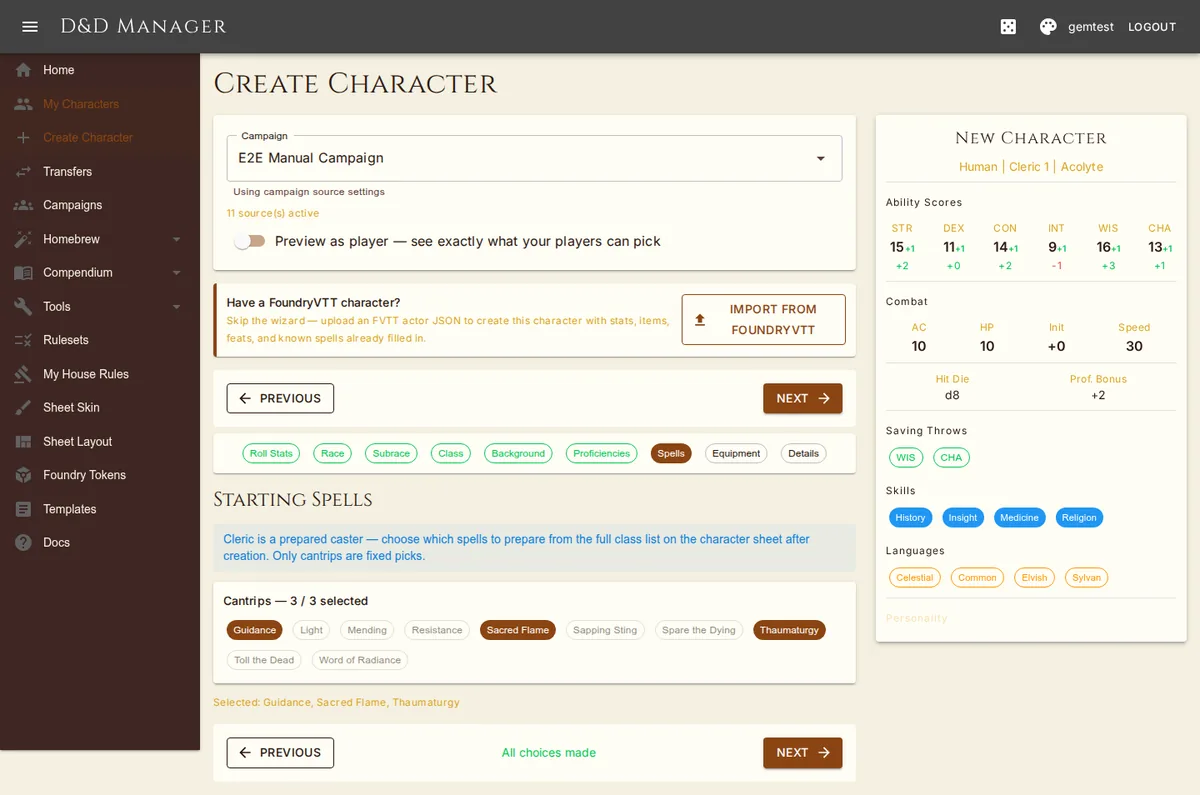
The character creation wizard guides you through eight steps — Roll Stats, Race, Subrace, Class, Background, Proficiencies, Equipment, Details — with a live character preview sidebar. The step chips at the top are clickable; the Subrace chip only appears for races that have subraces.
Choices Remaining
The bar at the bottom of every step tells you what the step still wants — "2 choices remaining" in amber, "All choices made" in green; hover for the breakdown ("1 subclass, 2 skill picks"). Only the hard gates disable Next: a rolled stat, a race, a class, a background. Everything else (ability increases, racial spells, subclass, optional features, skill, tool, language, and expertise picks, the starting feat) can be left for later — Next, or a forward jump on the step chips, opens a dialog naming what is unmade and lets you continue or stay. Going back is always free.
Step 1: Roll Ability Scores
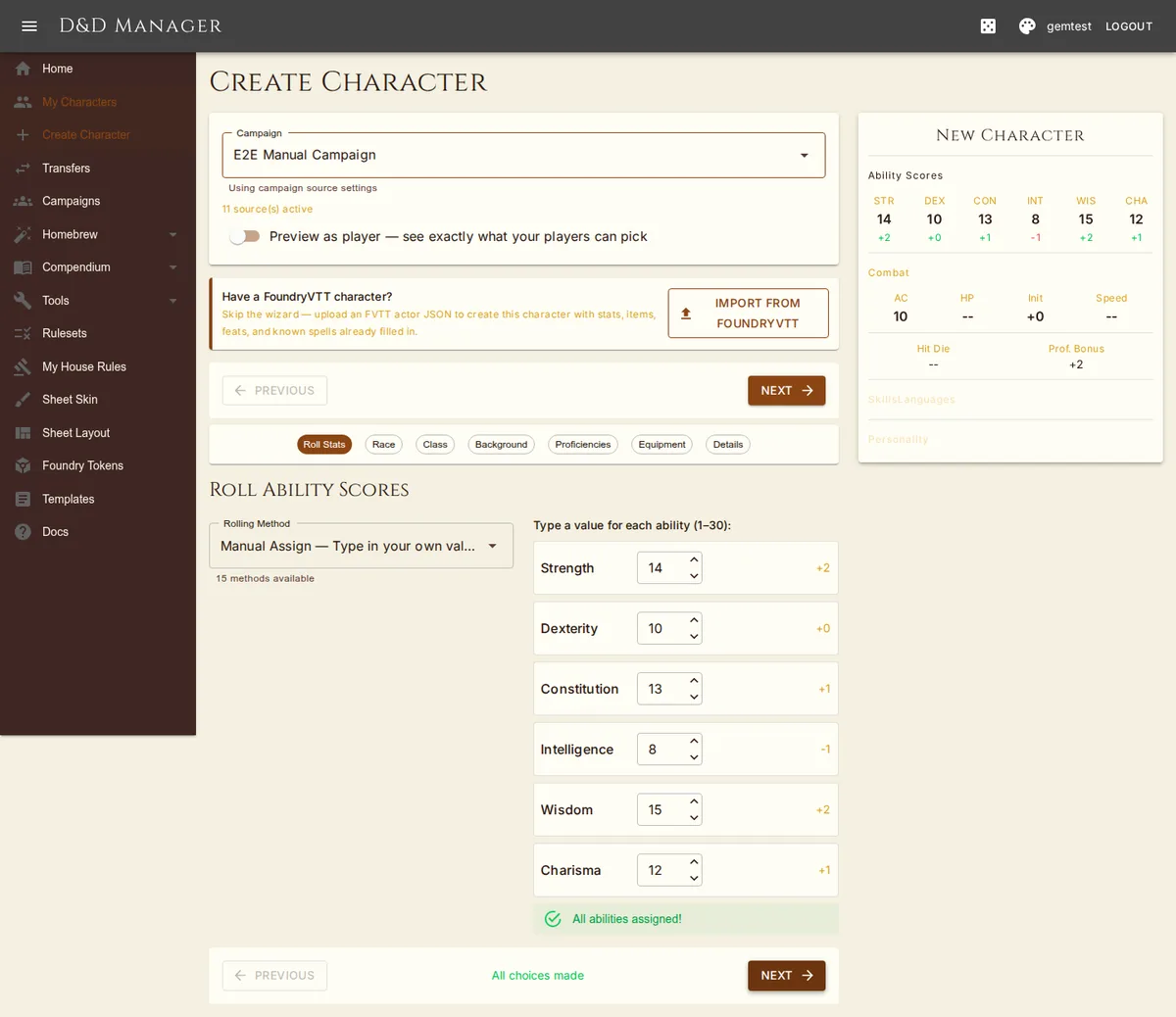
Choose a campaign (optional) and a rolling method, then generate and assign your six ability scores. The bottom bar reads "Select rolling method and assign stats" until a method is chosen, then counts down "6 stats unassigned".
Campaign Selection
If you belong to any campaigns, a dropdown lets you assign this character to one. Campaign characters use the campaign's ruleset and house rules; campaignless characters use your account's. If you are the DM of the selected campaign, a Preview as player switch shows exactly the lists a player gets — DM-only content hidden, DM pins into disabled books gone (switching it clears your current race, class, and background picks).
Rolling Methods
The dropdown lists every built-in method with its description, grouped by type — Manual Assign pinned first, then Array (Standard, Heroic, Epic), Point Buy (27-point RAW and custom budgets), Roll (4d6 drop lowest, 3d6, 2d6+6, reroll-1s, exploding dice, YOLO 1d20), Pool, and Other. A DM's house rules can restrict which methods are offered (see House Rules). Admins can add more via Game Data.
All rolled values and arrays use drag-and-drop assignment — drag a value chip onto an ability slot. You can also use dropdown selectors as a fallback. Click the X on an assigned ability to clear it and return the value.
Point Buy: Start each ability at the minimum score and use +/- buttons to adjust. A cost table shows the point cost for each score value. The remaining points budget is displayed at the top.
Dice Pool: All dice are rolled and sorted. Drag individual dice onto ability slots — they accumulate (e.g., drag three d6 results to Strength and the total becomes your STR score). Assigned dice are ghosted in the pool. A pool can carry a floor and a cap per ability (the caption says so); dice beyond the cap are spent for nothing.
Custom Rolling Methods (Admin)
Admins can create custom rolling methods via Admin > Game Data > Rolling Methods. The Expression field uses a dice expression language:
| Expression | Meaning |
|---|---|
4d6kh3 | Roll 4d6, keep highest 3 |
3d6 | Roll 3d6 straight |
2d6+6 | Roll with modifier |
4d6kh3r1 | Keep highest 3, reroll 1s |
3d6!min8max20 | Exploding dice with floor/cap |
array:15,14,13,12,10,8 | Custom array — any comma-separated values |
pointbuy:27 | Point buy, 27-point budget (RAW 5e) |
pointbuy:50:6:18 | Custom: 50 points, scores 6-18 |
pool:24d6:6 | Dice pool — roll 24d6, assign to 6 abilities |
pool:20d6:6min8max20 | Dice pool with each ability held to 8–20 |
best:6:3d6 | Roll 3d6 six times per stat, keep best |
assign | Manual entry |
A method you add is offered in every campaign that has no rolling-method restriction, and stays off in any campaign that has one until the DM selects it.
Step 2: Choose Race
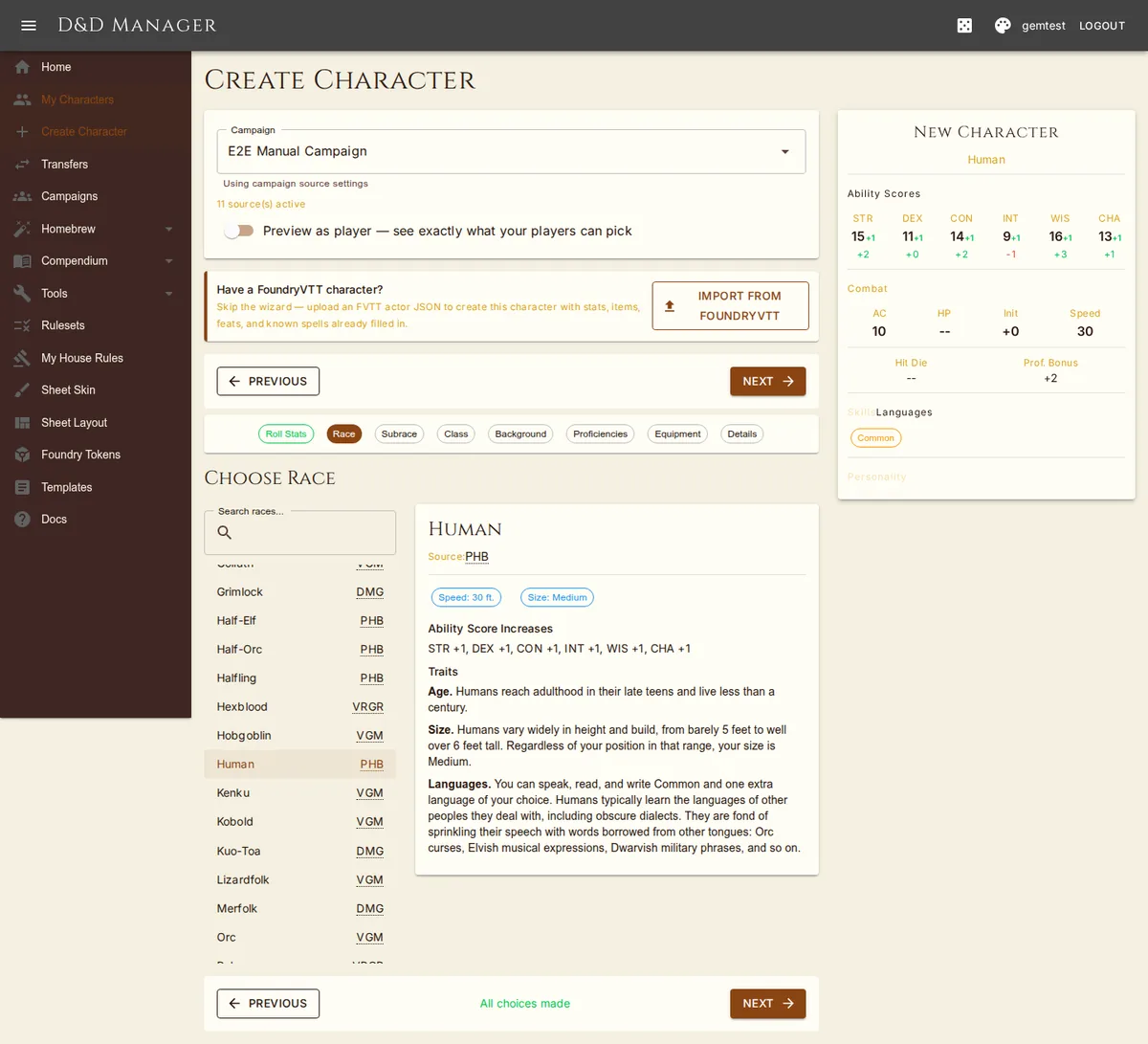
Browse or search the race list (name and source tag). Select one and the panel on the right shows its speed, darkvision, and size, its ability score increases, any spells it grants, and its traits.
Flexible Ability Score Bonuses
Some races (Half-Elf, Variant Human, Custom Lineage…) let you choose which ability scores to increase. A chip picker appears below the ability score summary; each pick must be a different ability, as in the rules. Van Richten's lineages (Dhampir, Hexblood, Reborn) and the Monsters of the Multiverse printings ask for two scores, the first getting +2 and the second +1; the chips show which is which. A subrace whose bonuses replace the race's (the MTF tiefling bloodlines, the Eberron dragonborn) does exactly that rather than stacking. The live preview updates as you choose.
Draconic Ancestry
A dragonborn picks its dragon from a dropdown of the race's ancestry table. The choice sets the damage resistance on the sheet and is remembered on the character.
Racial Spells
Races and subraces that grant spells list them under a Spells heading: what you get now as green chips (with uses per day or per rest where the race limits them), spells that arrive at later levels noted as "Later: Hellish Rebuke at level 3", and any "choose a cantrip" grant as a dropdown of the right class's cantrips from your enabled books. Fixed and chosen spells are added to your spell list when the character is created; later-level ones arrive at level-up.
Step 3: Choose Subrace
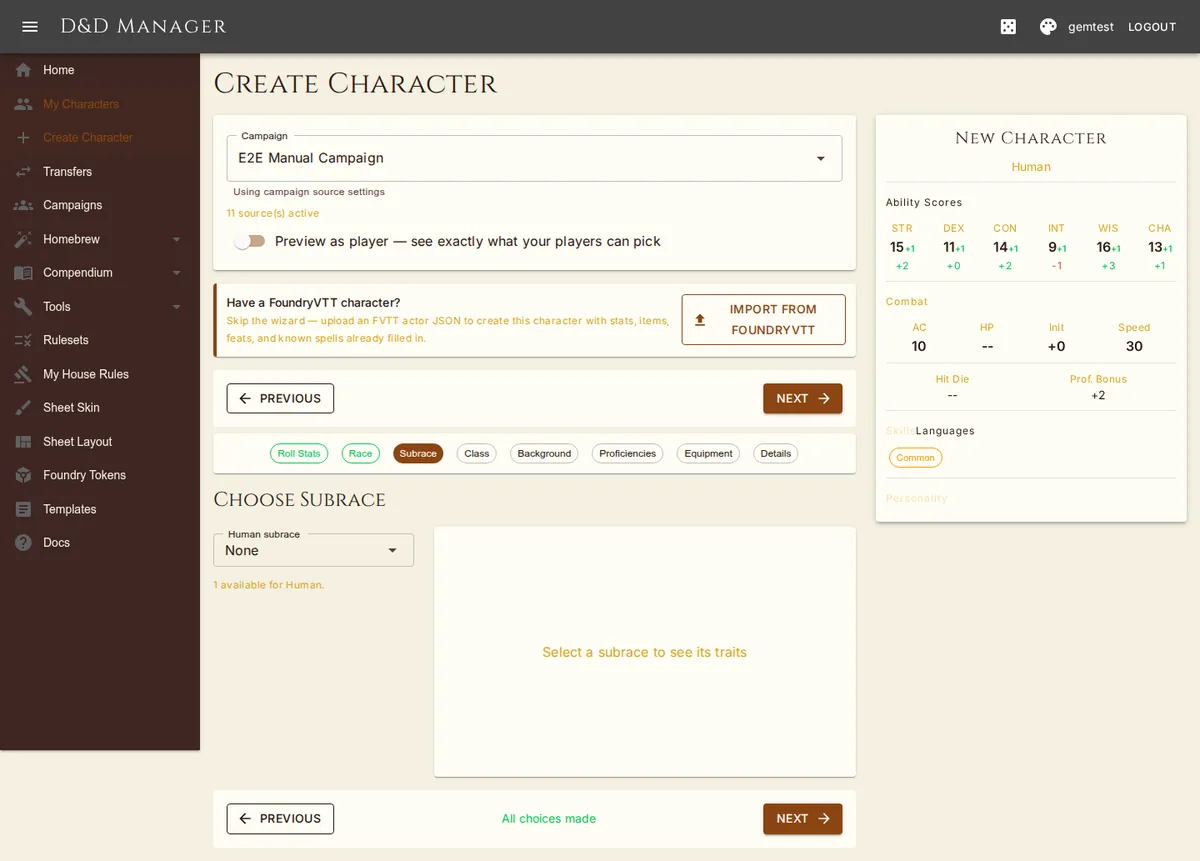
If the race you picked has subraces, this step appears; otherwise the wizard skips straight to Class. Pick from the dropdown (None is at the top) and the right panel shows the subrace's ability increases, spells, and traits. Flexible bonuses and spell picks work exactly as on the Race step. A subrace's own walking speed (Wood Elf 35 ft.) and any feat it grants (Variant Human) carry through. Only subraces from your enabled books are offered, one printing per name, and the 5e.tools "Variant;" cataloguing prefix is dropped.
Step 4: Choose Class
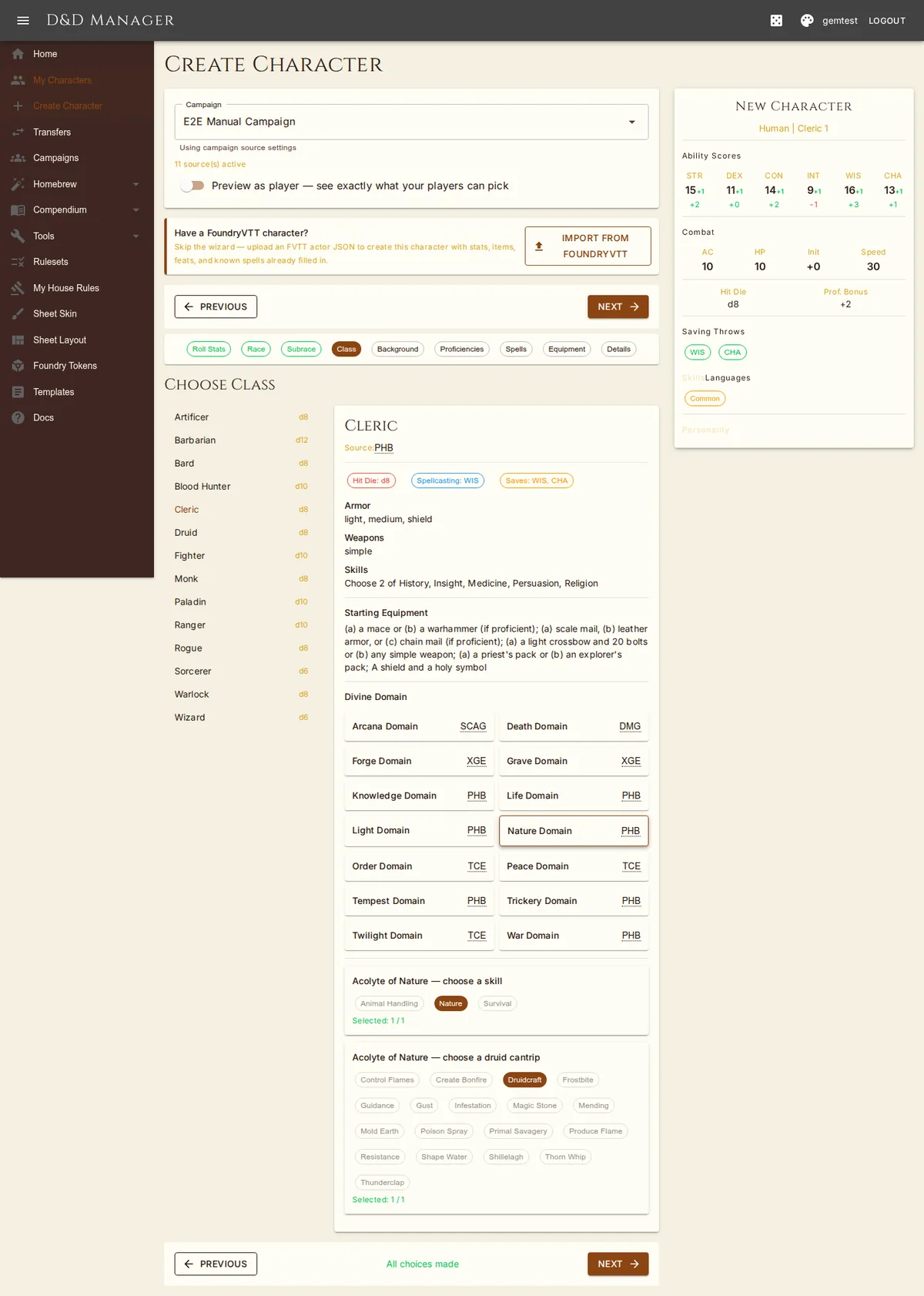
Browse the class list; the panel shows hit die, saving throws, spellcasting ability, proficiencies, and starting equipment. Select your starting class.
Subclass Selection: Some classes choose their subclass at level 1 (Cleric, Sorcerer, Warlock). When you select one of these classes, a subclass card grid appears below the class details; the subclass counts as a remaining choice until picked.
Optional Feature Choices: If your class grants an optional feature pick at level 1 (e.g., the Fighter's Fighting Style), a picker appears below the class details. Single-pick choices use radio buttons; multi-pick choices use checkboxes capped at the allowed count. Each option shows its full description. A subclass feature that asks its own question in prose (a Nature Domain cleric's druid cantrip and skill) shows a chip row under the subclass grid; the cantrip does not count against the class's cantrips.
Subclass Options
A subclass whose spells come in named groups — a Divine Soul's affinity, later a Land druid's terrain — shows a dropdown under its card. The pick decides which group's spells you get and is stored with the class level; the wizard will not advance until it is made.
Step 5: Choose Background
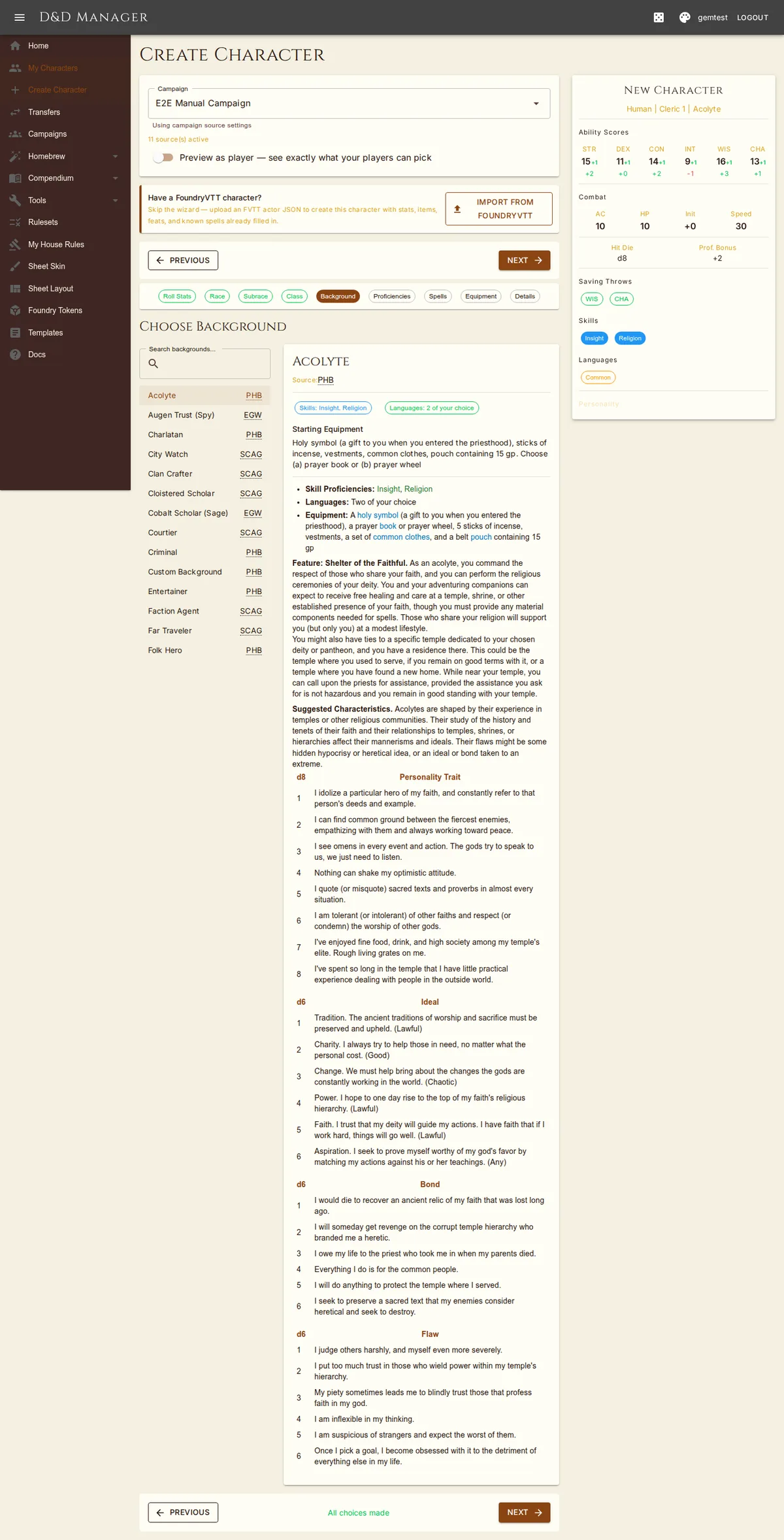
Browse or search backgrounds (including any custom backgrounds you've created). The panel shows the skills, tools, and languages it grants and describes its starting equipment in plain words — category picks, coin purses, and a/b choices included.
Step 6: Proficiencies & Languages
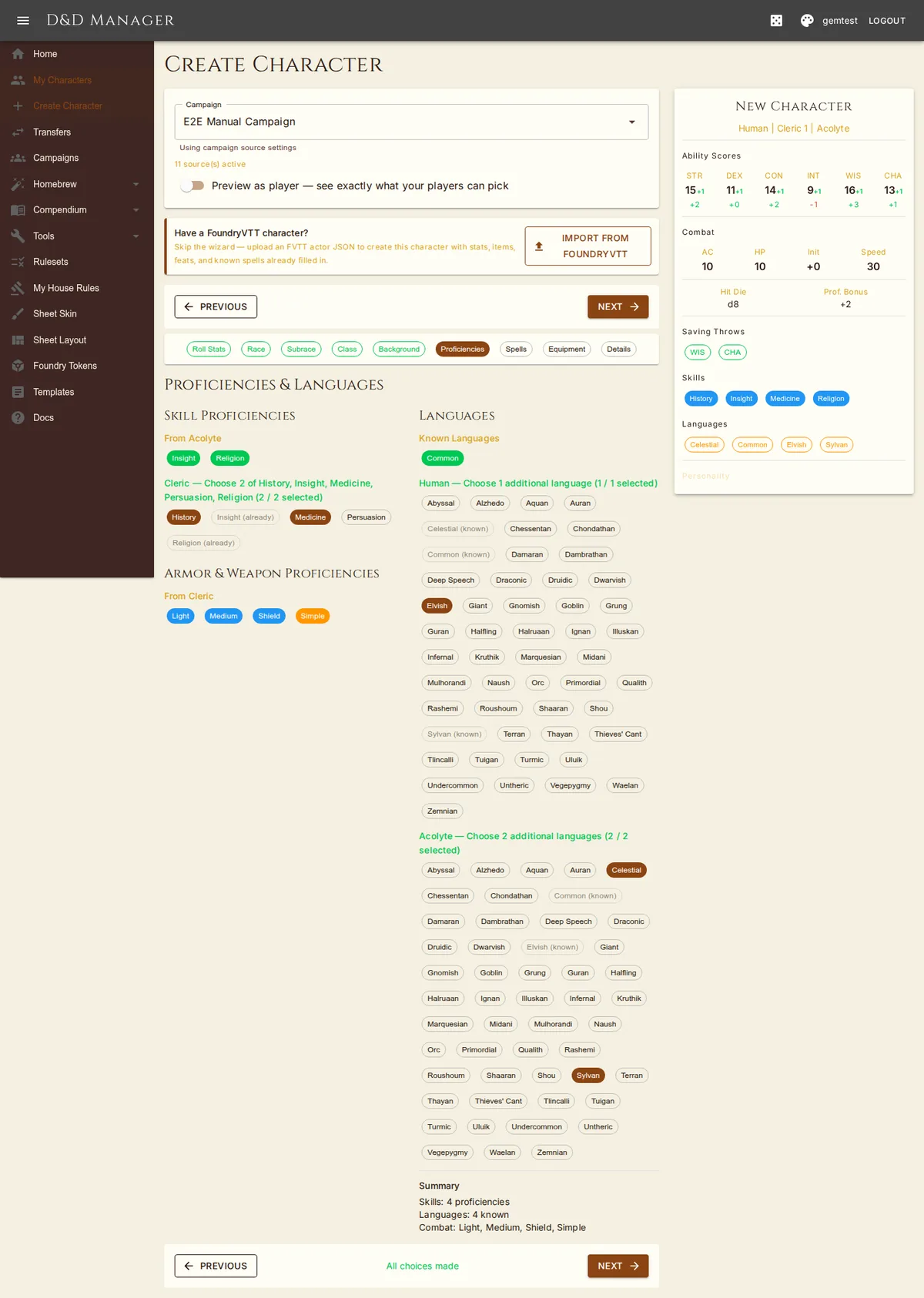
Review and select proficiencies. Skills granted outright by background, race and subrace are shown as green chips under their source. Every choice — the class's list, a Half-Elf's any-two, a Kenku's or a Cloistered Scholar's pick — is its own chip group labelled with who offers it and how many; a skill already granted elsewhere is shown disabled as "(already)". Languages work the same way: known ones as green chips, then one group per choice (a High Elf's extra language, a Sage's two). Only languages from your enabled books are offered. Armor and weapon proficiencies from your class, race and subrace are displayed and saved.
Tool Proficiencies: tools granted outright appear as chips. Anything phrased as a choice — a Bard's three musical instruments, a background's "one type of artisan's tools", a Dwarf's smith's/brewer's/mason's pick — appears as its own chip set ("Bard — Choose 3 musical instruments (0/3)") drawn from the mundane tools in your enabled books. Each pick becomes its own proficiency.
Expertise (Rogue): If your class is Rogue, an Expertise section appears where you choose 2 proficiencies to double your proficiency bonus. You can pick from any of your proficient skills or Thieves' Tools. Selected expertise is shown with a gold chip and star (★) on your character sheet.
Starting Feats: if the active house rules grant a free feat at level 1, or your race does (Variant Human, Custom Lineage), a Starting Feats box appears here listing why each is owed. Search by name; hovering an entry shows what the feat does and any prerequisite (prerequisites are shown, not enforced). Feats with choices open the same configuration dialog the sheet uses before they are accepted, and a "configured" chip confirms it. Skip the house-rule feat and pick later from the sheet if you prefer.
Step 7: Starting Equipment
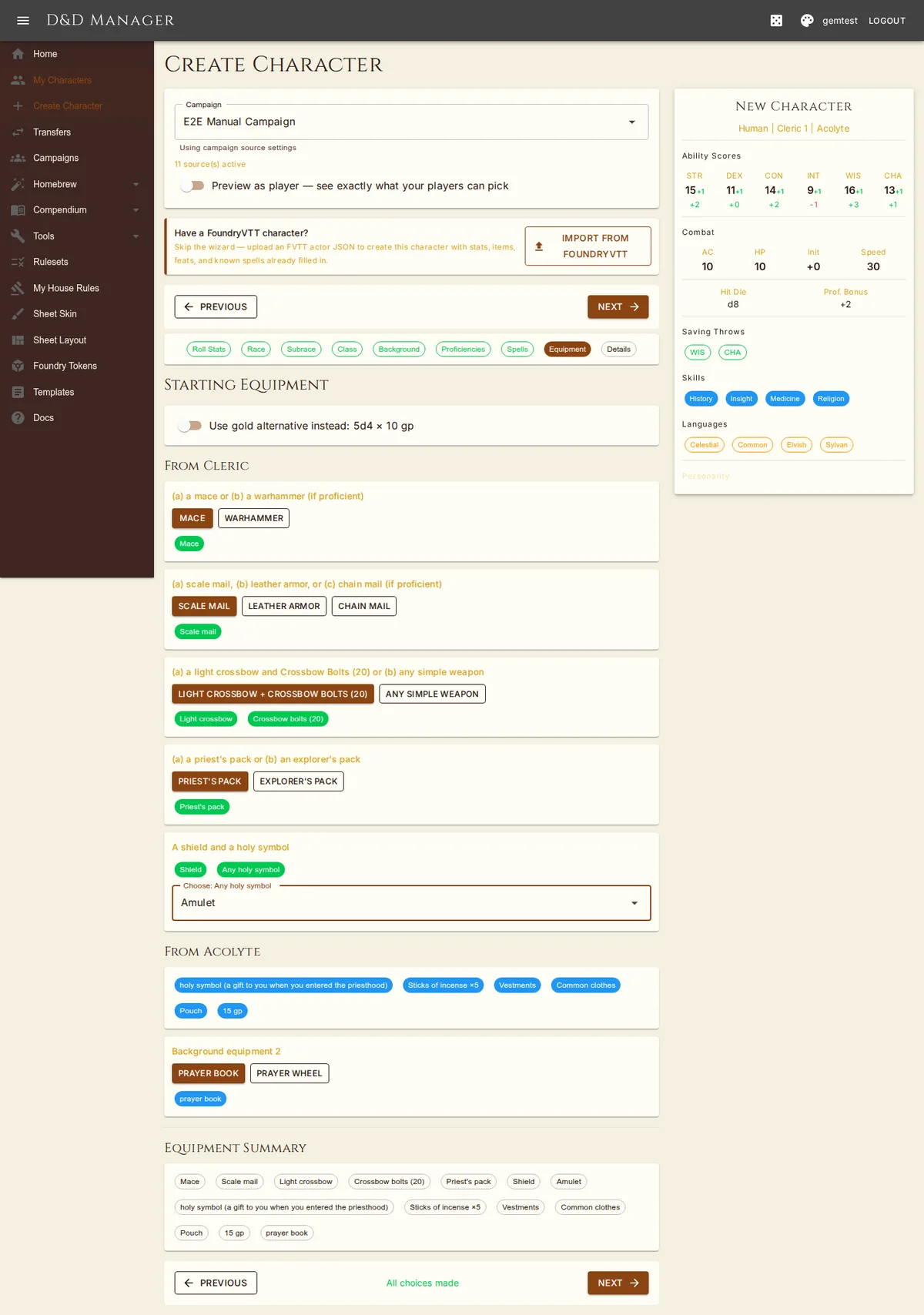
Select your starting equipment from your class and background. Equipment is presented as choice groups (e.g., "(a) a greataxe or (b) any martial melee weapon"). Click option buttons to choose, and use dropdown selectors for category picks (like "any martial weapon"). A gold alternative toggle lets you skip class equipment and start with gold instead. Background equipment is always included, and so is its coin purse — a Soldier starts with 10 gp, an Acolyte with 15. Named things the catalogue does not carry (an insignia of rank, vestments, sticks of incense) become custom items in your library rather than disappearing. A category dropdown left unpicked counts as a remaining choice. An equipment summary at the bottom shows all selected items. Adventuring packs are flattened into their contents. Everything starts equipped (carried); if the kit includes armor and a shield, they are worn from the first minute, and "any martial weapon" lists the weapon tables, not the DMG's firearms.
Step 8: Character Details
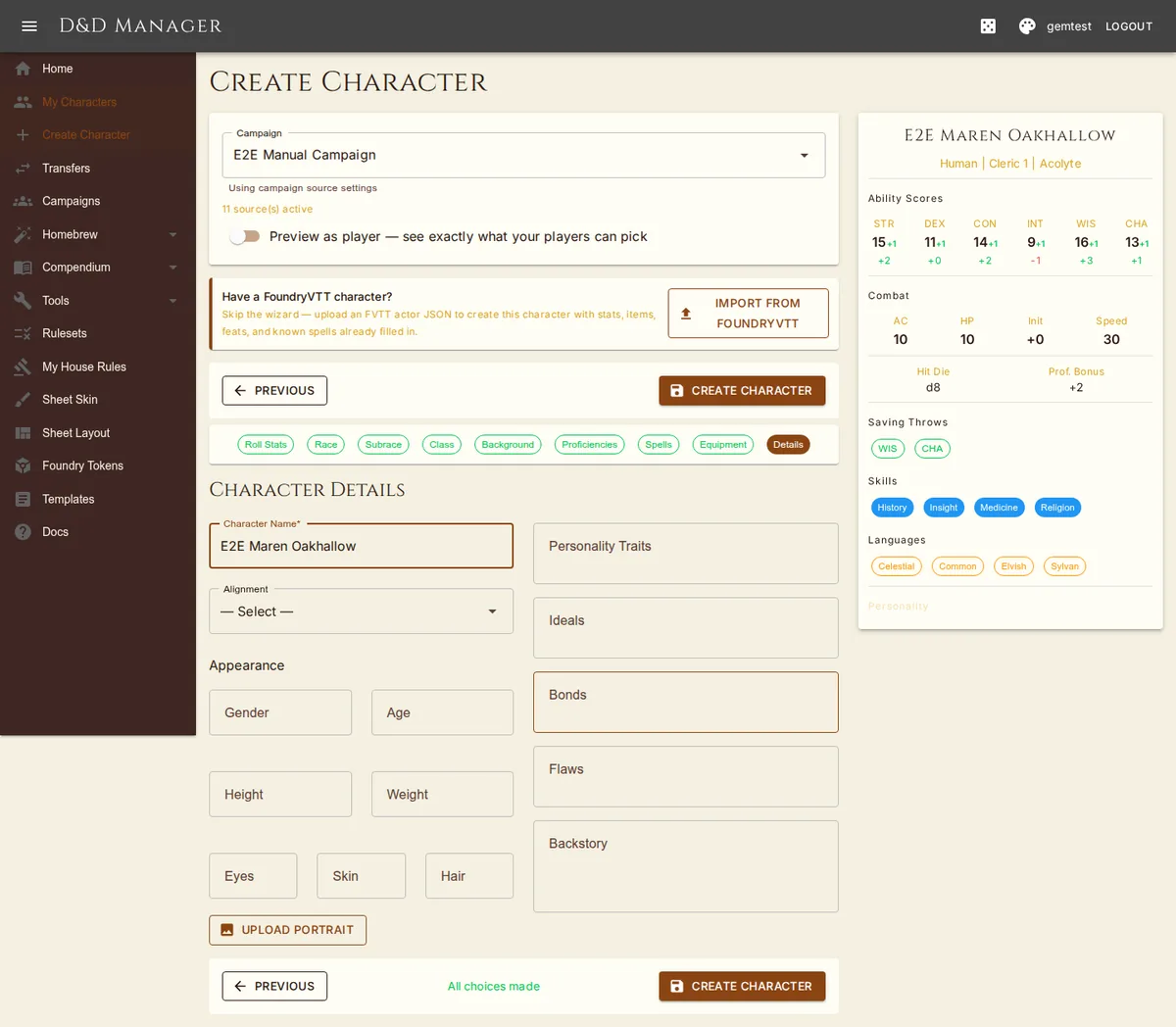
Fill in your character's personal information:
Character Name (required)
Alignment — dropdown with all 10 options (LG through CE, plus Unaligned)
Appearance — gender, age, height, weight, eyes, skin, hair
Portrait — upload an image (JPEG, PNG, or WebP, max 50 MB)
Personality Traits, Ideals, Bonds, Flaws — free-text fields
Backstory — larger text area for character background
Click Create Character to finalize. You'll be taken to your new character's sheet.